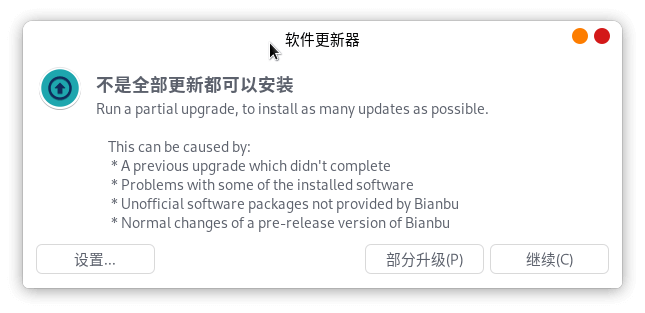
Networking and Upgrading
To better experience the Bianbu operating system, we strongly recommend that you use the network, as you can access more applications and the latest operating system we release.
Network Connection
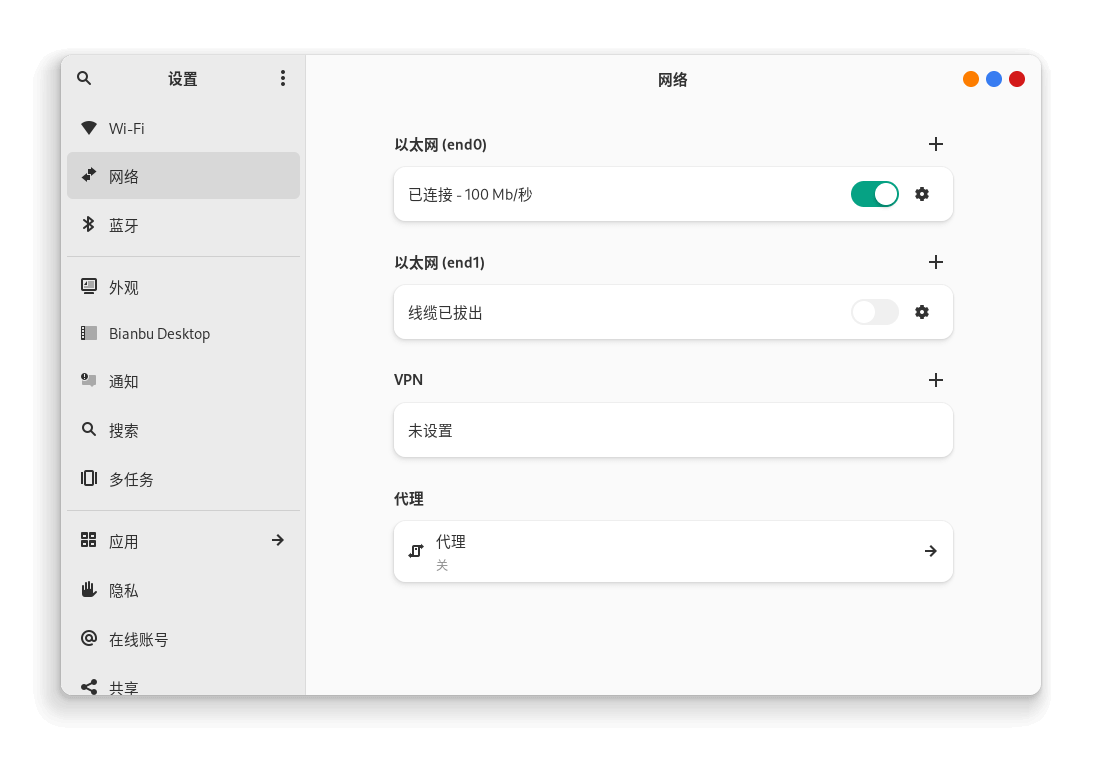
The way Bianbu OS connects to the network is very simple. It is divided into two connection methods: wired network and wireless network. The following describes the two network connection methods separately.
Wired Network
The wired network supports the DHCP mode, so when you plug in the network cable, the system will configure the network by itself and connect to the network.
Wireless Network
If you cannot use the wired network, you may need to choose the wireless network to connect to the network. Before using the wireless network, please make sure that your K1 is installed with a wireless network card. When the network card is installed, we will open the icon of network connection and select the wireless network.
Screenshot of Configuration
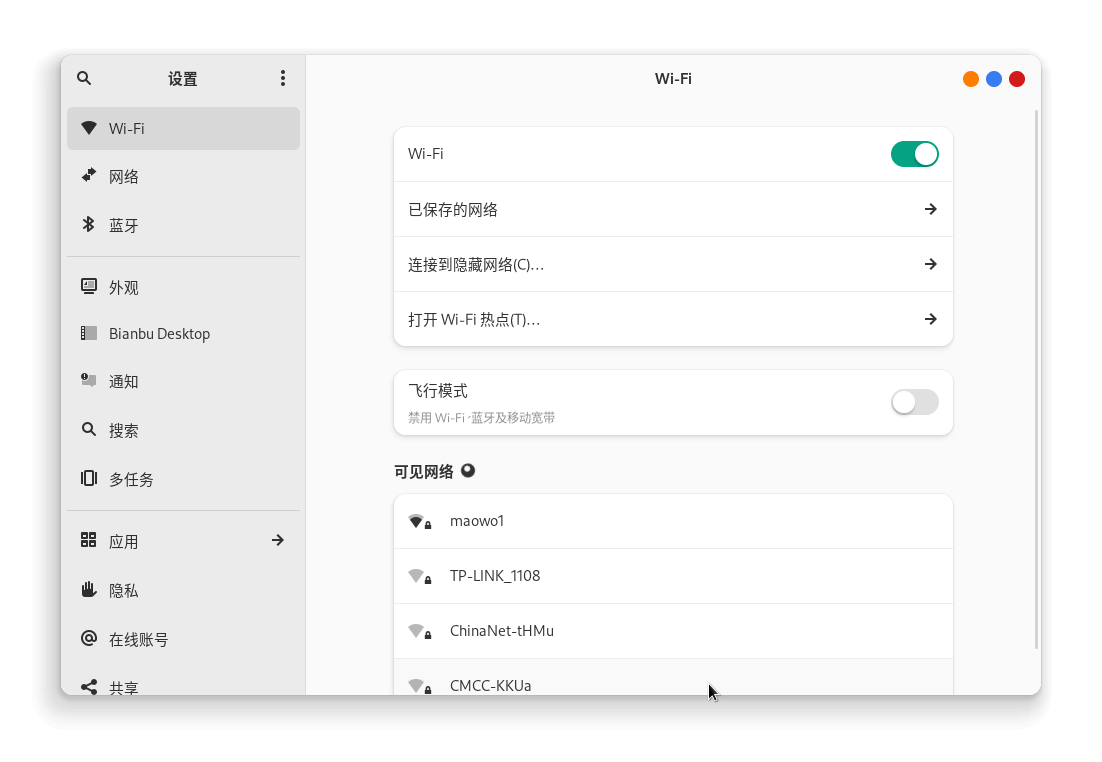 When we find that the signal icon appears, it means that the network is connected. If the signal is too weak, you can consider whether the position of the antenna is reasonable.
System Upgrade
To give you a better software experience, Bianbu OS is continuously optimized, and Spacemit will regularly release deeply optimized system firmware. Therefore, we strongly recommend that you update the system regularly. Bianbu OS supports online updates, and you can update it in two ways:
Command Line Method
We enter in the control terminal,
sudo do-release-upgrade
Follow the prompts to complete step by step, and restart after completion.
Software Updater Update
- Connect the device to the network;
- Open the "Software Updater";
- Wait for the check for updates to complete;
- Discover the new version, click Upgrade;
- Complete step by step according to the prompts;
- Restart.